For any business, positive and increased cashflows are critical elements in your daily operations. With R2 you are easily and accurately able to collect and track advance deposits against orders. You are then able to issue an invoice for that deposit to your customers.
Record a Deposit
1. To create a deposit invoice from your R2 rental order, begin by clicking on the Deposits icon
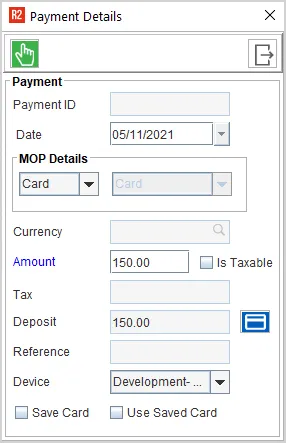
2. Enter the Payment Details such as the method of payment and the deposit amount, then click on the Accept icon
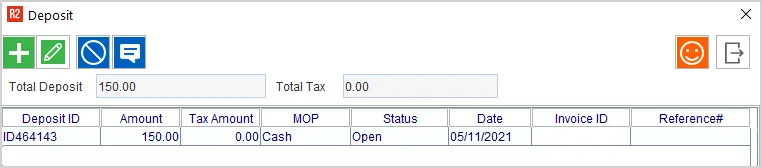
3. The deposit will appear in the Deposit list but without an Invoice ID:
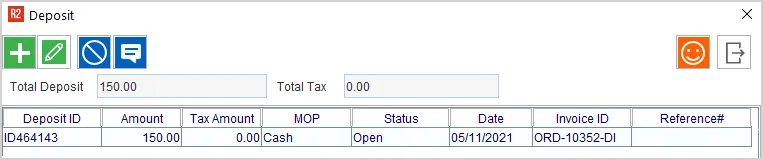
4. Highlight the deposit and click on the happy face to create an invoice for the deposit. Note that an invoice number appears next to the deposit amount:
5. Also note that the deposit invoice now appears in the usual invoice list. To confirm this, click on View > Invoices from within the order:
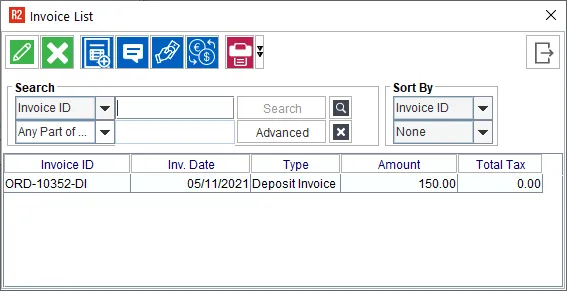
Applying a Deposit
1. To apply a deposit to the rental/sales order invoice, the deposit invoice must first be posted. Once the deposit invoice is posted, navigate back to the order and click on View Invoices to see the invoice list:
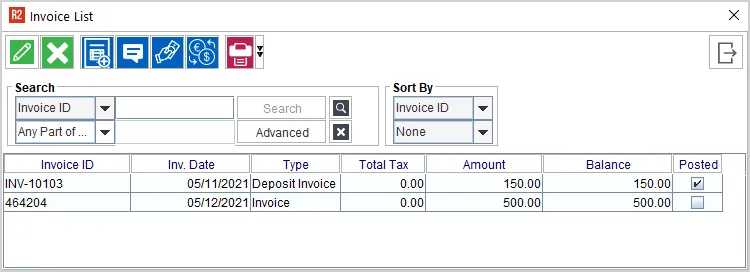
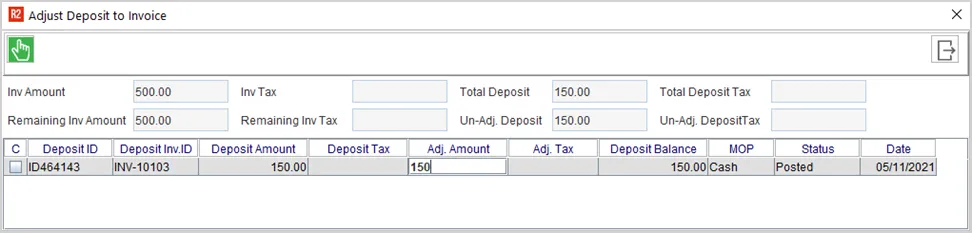
2. Highlight the invoice to which the deposit should be applied and click the Adjust Deposit icon. Type the amount of the deposit that should be applied to this invoice into the Adj. Amount field:
3. When the deposit amount has been applied to one or more invoices, the invoice will show the Balance due as being adjusted:

Printing Deposit and Balance Due
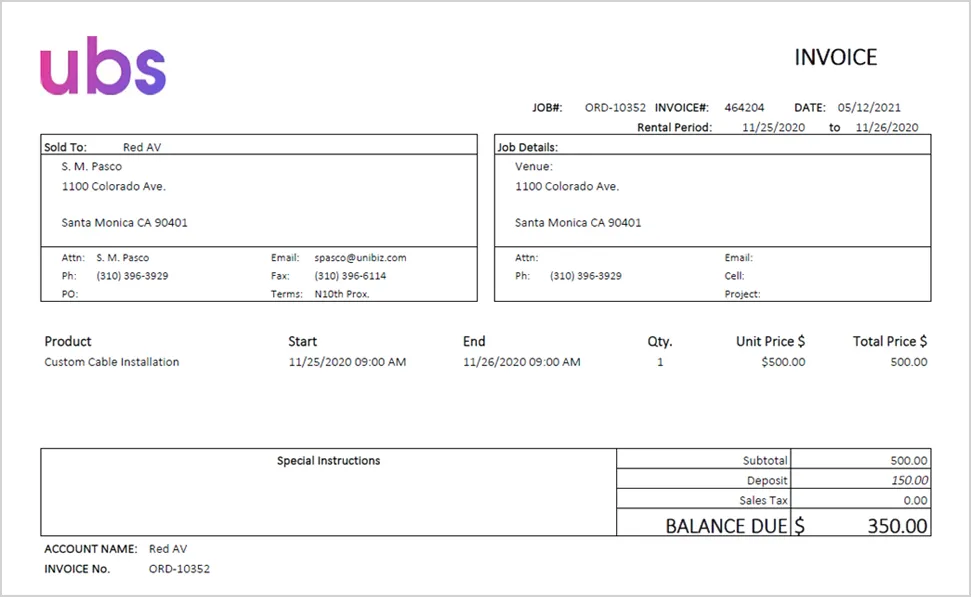
1. The R2 invoice print can be adjusted to include the amount of Deposit as well as the invoice Balance Due, as illustrated below